Your setup.
Your signature.
Personalise your display with box and skeleton styles, colour controls and a live player preview, wrapped in the Ember menu.
Download for WindowsWindows 64-bit · v0.7.10 · Windows installer (.exe) · Runtime included
No macOS, Linux, mobile or console version.
Download warning
This installer is not digitally signed. Some browsers may flag this new download as unfamiliar or suspicious, and Windows may show “Unknown publisher” or a SmartScreen warning. This does not confirm that a warning is a false alarm. Keep your security protection enabled; if the file is blocked, report the exact warning before proceeding.
Google sign-in is required inside the app before capture can be enabled. Your login is remembered securely on your Windows account. Capture always starts off. Basic usage reporting is enabled by default and can be turned off in Settings.
What’s new in 0.7.10
- Bunny hop: an optional Utilities toggle uses Left Alt and observed landings to send jump inputs. It starts off.
- Custom scope: the front side mouse button (Mouse 5) cycles magnification. Right-click keeps its normal weapon action.
- Recoil compensation: updated handling for quick fire clicks and short recoil recovery. Scoped and general switches start off.
These features are experimental. Perfect hops, recoil cancellation and official matchmaking compatibility are not guaranteed. Spread compensation is not active.
How do I set up Bunny Hop?
In the CS2 console, run bind mwheeldown "+jump" once. Wheel-down will jump instead of cycling weapons; Space stays unchanged. Leave Left Alt unassigned in CS2. Enable Capture, open Utilities, enable Bunny Hop, then hold Left Alt. Release it to stop. Escape pauses until Alt is released. If no takeoff is observed, the toggle stops; check your binding and the session’s input rules.
Valve’s input automation policy warns that movement automation may result in a kick from official servers.
Install. Sign in. Enable Capture.
Set up once, then open the app and CS2 whenever you want to use it.
Download for Windows
Open DuckyRage-Ember-Setup-0.7.10.exe, approve the Windows permission prompt, and click Install. Setup creates desktop and Start menu shortcuts. No ZIP extraction is needed.
Sign in with Google
Click Sign in with Google in Overview. Complete sign-in in your browser and return to the app. There is no separate DuckyRage password.
Open Counter-Strike 2
Launch CS2 on the same PC and join your session. Keep the app open.
Press Enable Capture
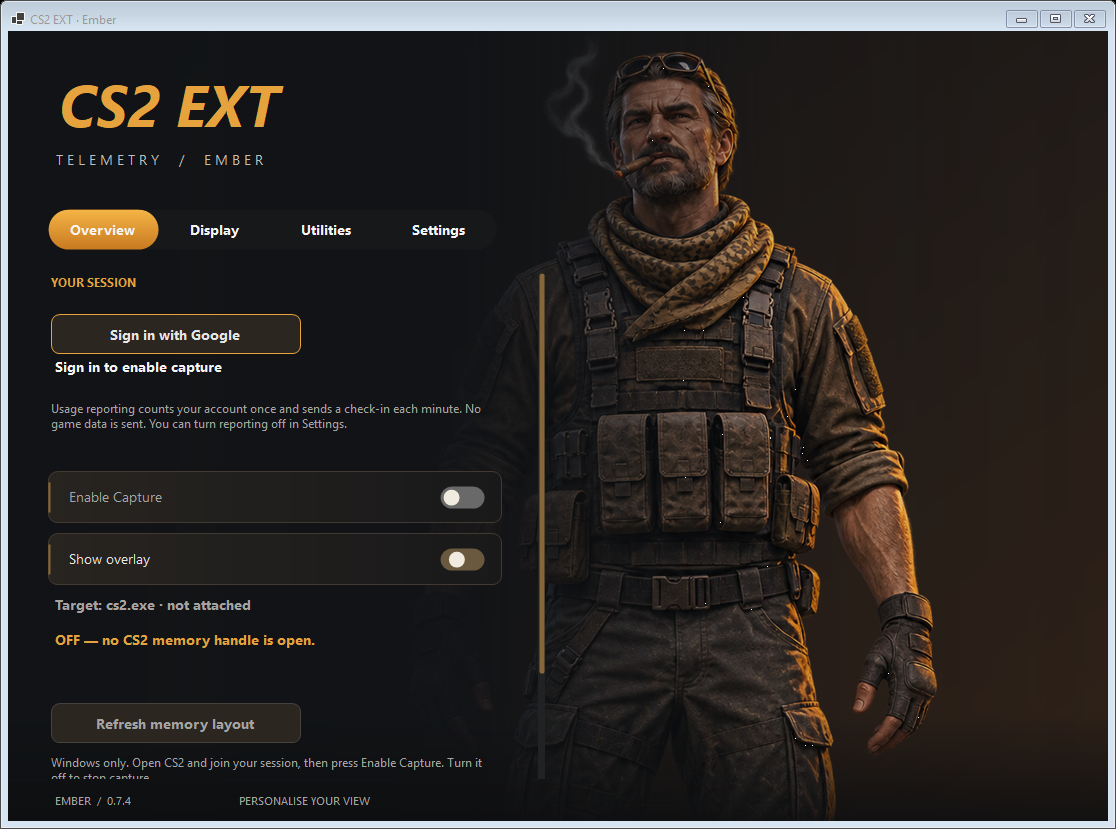
In the Overview tab, turn on Enable Capture. Check that the status says capture is on. Turn it off to stop.
The Ember menu
Before you start
Which download do I need?
Use the Windows 64-bit installer above. The required runtime is included. This app does not run on macOS, Linux, phones or consoles.
Why does the app say Update required?
From version 0.7.5, the app checks the minimum supported version at startup and every minute. If yours is too old, capture stops and the menu shows an update screen. Install the latest version from this page. Internet access is required for the check; an already approved session has up to five minutes of connection grace. Older releases without this feature cannot be locked remotely.
How do I update or uninstall?
Close DuckyRage Ember and run the latest installer to update. Your preferences and remembered login stay on your Windows account. To remove the app, use Windows Settings → Apps → Installed apps → DuckyRage Ember → Uninstall. Sign out first to remove the saved login.
Does capture start automatically?
No. Capture starts off each time you open the app. Open CS2, then press Enable Capture when you are ready.
What if capture does not start?
Read the status in Overview. Make sure CS2 is running on this PC. A CS2 update can require an app compatibility update; availability is not guaranteed for every game build.
Where do I customise the look?
Use the Display tab to select boxes, corners, skeletons, colours, scale and line thickness. The preview shows a sample player. Appearance settings save automatically.
Will it remember my login?
Yes. Your refresh credential is encrypted for your Windows user account and renewed with Google. Sign out removes the saved login. Internet access is needed to restore or renew sign-in; Google may occasionally ask you to sign in again.
What information does sign-in use?
The app asks Google for your account identity and email address. It does not request your Gmail messages. Your encrypted remembered login stays on this PC. With basic usage reporting enabled, the app sends your Google identity securely to the DuckyRage service for verification and checks in once a minute. The service stores a hashed account identifier to count unique users, plus recent check-ins; it does not store your email or game data. Only the owner can read aggregate counts. You can turn reporting off in Settings. This stops future check-ins; your historical unique-user entry remains. Older app versions do not report usage. The service is hosted on Netlify, which also processes ordinary network request data. Google privacy policy.
Compatibility
This is an experimental release using layout build 14196. Game updates may require a compatibility update. VAC compatibility is not established.